This guide is intended for employees, merchandisers, and brand inspectors working on behalf of a brand owner to authenticate products by scanning the packaging for a Digimarc digital watermark. Watermarks were applied to genuine products using other Digimarc tools.
Sign Up for an Illuminate™ Account
To use the Validate mobile app, you must be invited to an Illuminate account by an account administrator and complete your registration.
Click Sign up in the invitation email. This opens the Digimarc Illuminate Platform in a browser.
Set a password.
Log in to Illuminate. You can then complete your registration:
If you've completed the registration on a desktop or laptop computer, you can scan the QR code on the screen with your mobile phone to open the Validate app page in the appropriate store.
If you've registered using your phone, you can open the Validate app page by tapping the relevant store button.
You can also search for the Digimarc Validate app in the App Store or Google Play.
Configure Permissions
To scan a product package and send the report to the brand owner, the Validate app needs permission to access the camera and your phone's precise GPS location.
Accept the request for camera permissions. The app uses the camera to scan for a digital watermark.
Accept the request for location permissions. The app needs your precise location to record the scan. To enable the precise location:
iPhone: Go to Settings > Privacy & Security and select Location Services. Select the Validate app and turn Precise Location on.
Android: Go to Settings and search for Location. Select App permissions and the Validate app. Enable Use precise location.
Sign In and Sign Out
When you open the Validate app, the Sign In screen asks for your email address and password. Use your Illuminate account credentials.
If you don't have credentials or see an unknown user error:
Contact your account administrator to get invited to the Illuminate account.
You can close the app without signing out. The next time you open it, you're automatically signed in with the most recently used credentials. If you work with multiple accounts, first sign out and then sign in with the email address associated with the account you want to work with.
To sign out:
Tap the user icon in the top right corner.
Select Sign out.
Scan a Product Package
To scan a product, point the rear-facing camera at the product's package. The Validate app scans continuously until it finds a watermark.
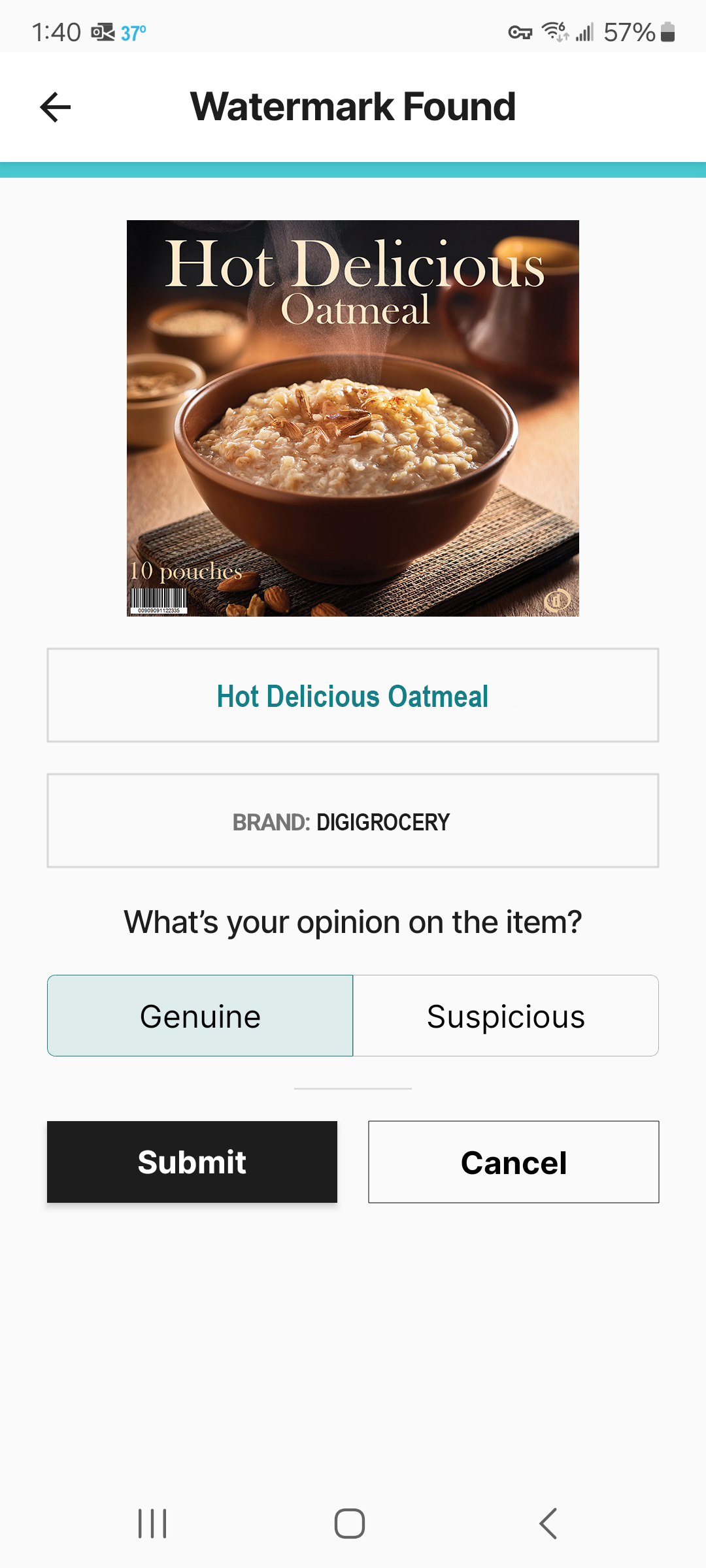
If the Validate app finds a watermark:
Tap the button to indicate whether you believe the product to be Genuine or Suspicious.
 Validate Mobile App Guide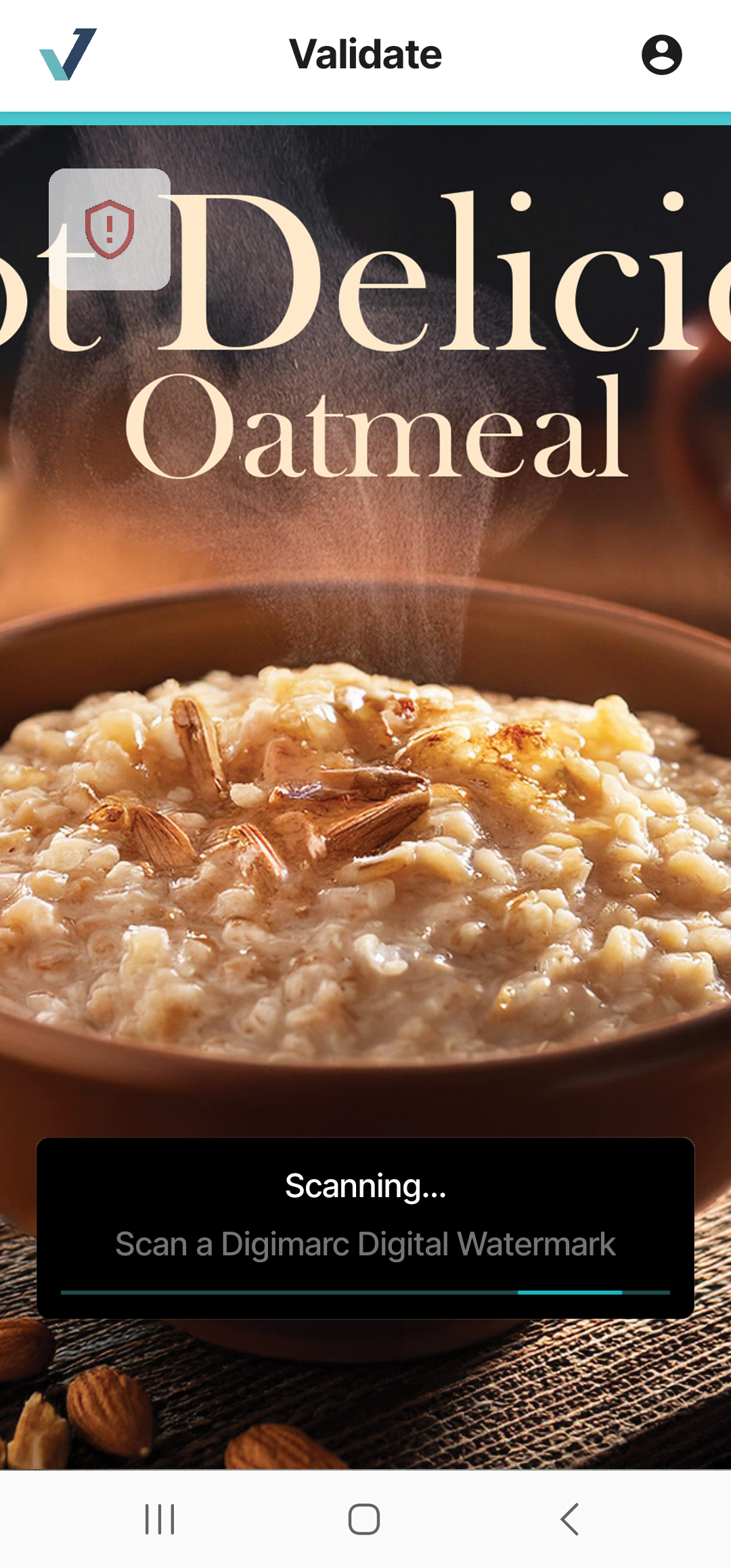
 ).
).